What you can translate in a form plugin
A form plugin shows two kinds of text, and it helps to know which is which.
| Text | Example | How to translate it |
|---|---|---|
| Texts the plugin ships with | "This field is required.", "Submit", "Please enter a valid email address." | Inpage Translate, on the page |
| Texts you typed when building the form | Your own field labels and your own thank-you message | Edit the form itself, or use a multilingual plugin |
The first kind goes through WordPress translation functions, so Inpage Translate finds it. The second kind is stored in your database as part of the form, like the text of a post.
Step by step
- 1Open a page that shows the form.
Use the page on your site, or the plugin's form preview.
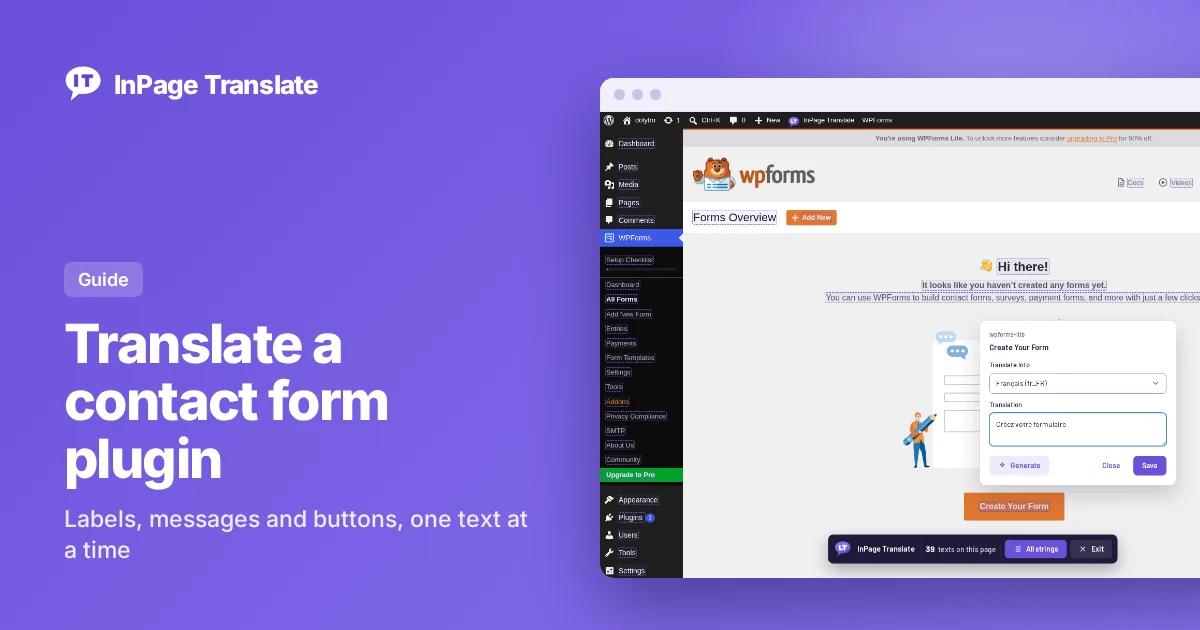
- 2Turn on translate mode.
Click Inpage Translate in the toolbar. If the toolbar is hidden, add
?lt_translate=1to the address. - 3Click the submit button.
A small editor opens next to it. Choose a language, type the translation and save.
- 4Show the validation messages.
Send the form empty once, so the plugin shows its "required" notices, then click each one and translate it.
- 5Send a test message.
The confirmation and error messages appear only after sending; translate them as they appear.
- 6Translate the admin screens too.
Open the plugin's Entries or Settings screen and translate what your team reads there.
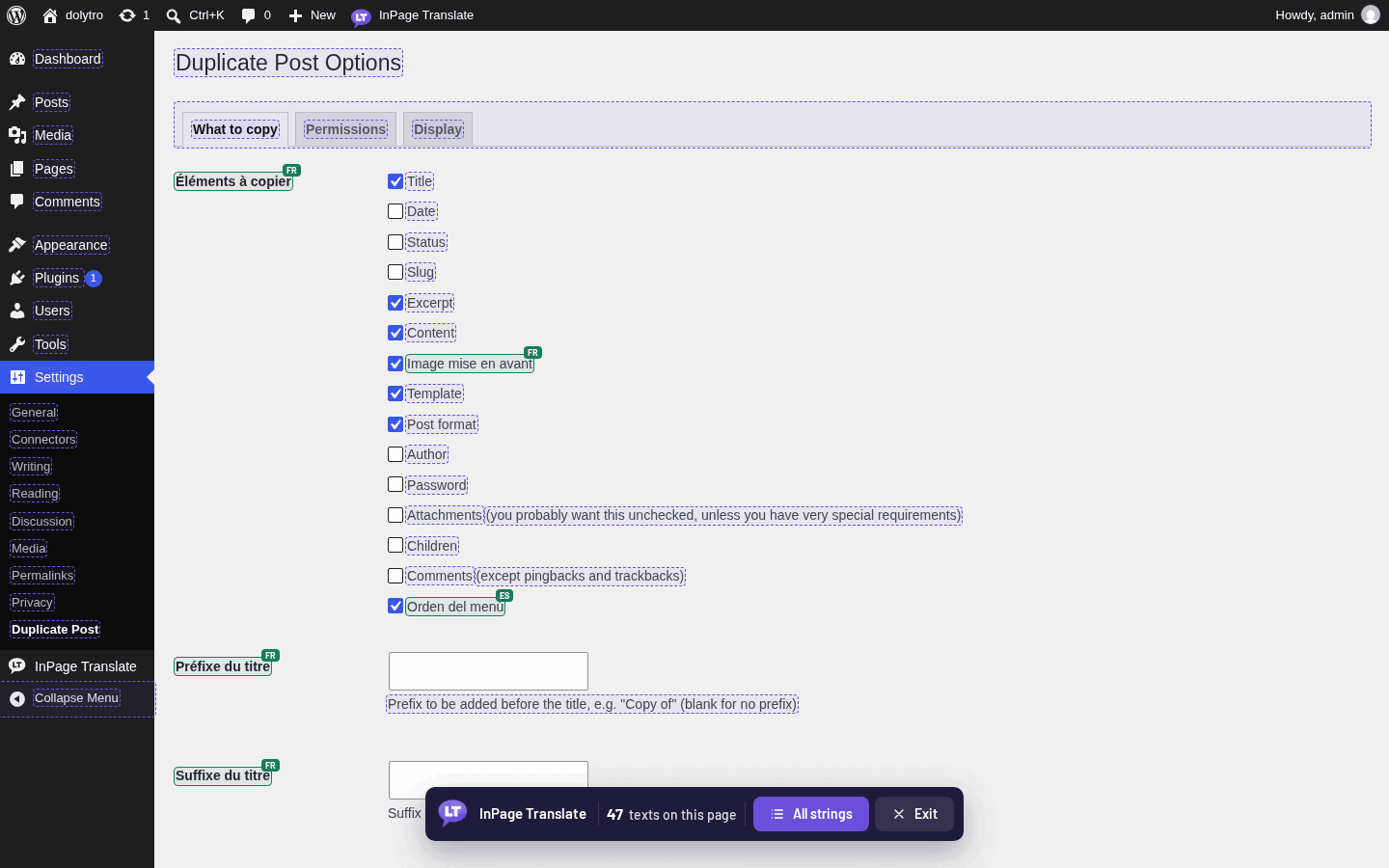
Texts that only appear after an action
Some texts are only shown after an action: a message after sending, a notice when a file is too large. Translate mode can only mark what is on the page. Make the text appear, then click it.
If a text never shows on the page you can reach, open Overview, scan the plugin and translate it from the list instead.
Let Generate write the drafts
For a long list of messages, press Generate in the editor, or use "Translate missing" on the Overview screen to draft every missing text of the plugin at once. Drafts are marked Needs review until someone approves them. See How Generate works.
Keep placeholders intact
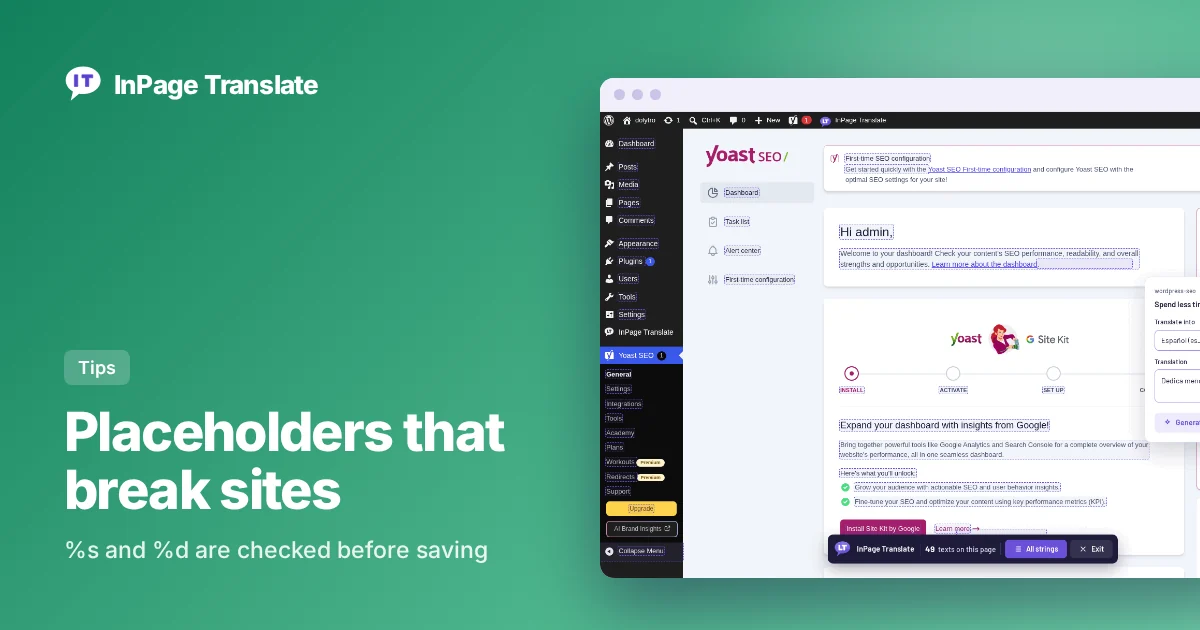
Form messages often hold placeholders, such as "Please enter at least %d characters." Keep %d in the translation. Inpage Translate refuses a translation that adds a placeholder and warns you about one that is missing. Read why that matters.
Summary
Open the form, turn on translate mode, and click each text as it appears: button, notices, messages. The plugin's own texts are done in minutes, and they stay translated after every update of the form plugin.