Fast, but not always right
Services such as DeepL, Google Cloud Translation and Microsoft Translator are good, and getting better. But plugin texts are short and have no context. "Post" could be a blog post or sending a letter. "Order" could be a purchase or a sort order. A machine has to guess, and in a shop or a settings screen a wrong guess confuses people.
That is why Inpage Translate treats every machine translation as a draft.
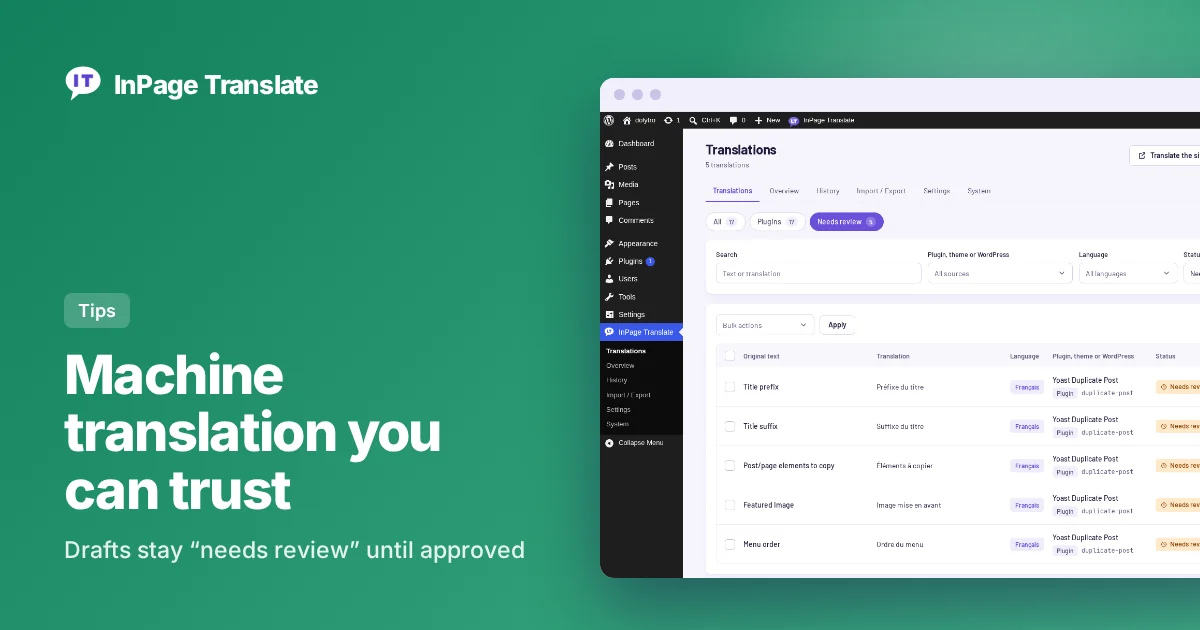
Needs review, and Approved
A translation is either Approved or Needs review. Every draft from Generate, and every text saved by "Translate missing", starts as Needs review.
A draft is used on your site straight away, so you do not have to wait to see the result. The label simply tells you a person has not checked it yet.
Who can approve
Only administrators, and the roles you choose under Settings, can approve a translation. A translator can draft and edit, and someone else signs off. See Roles and permissions.
Review hundreds of texts quickly
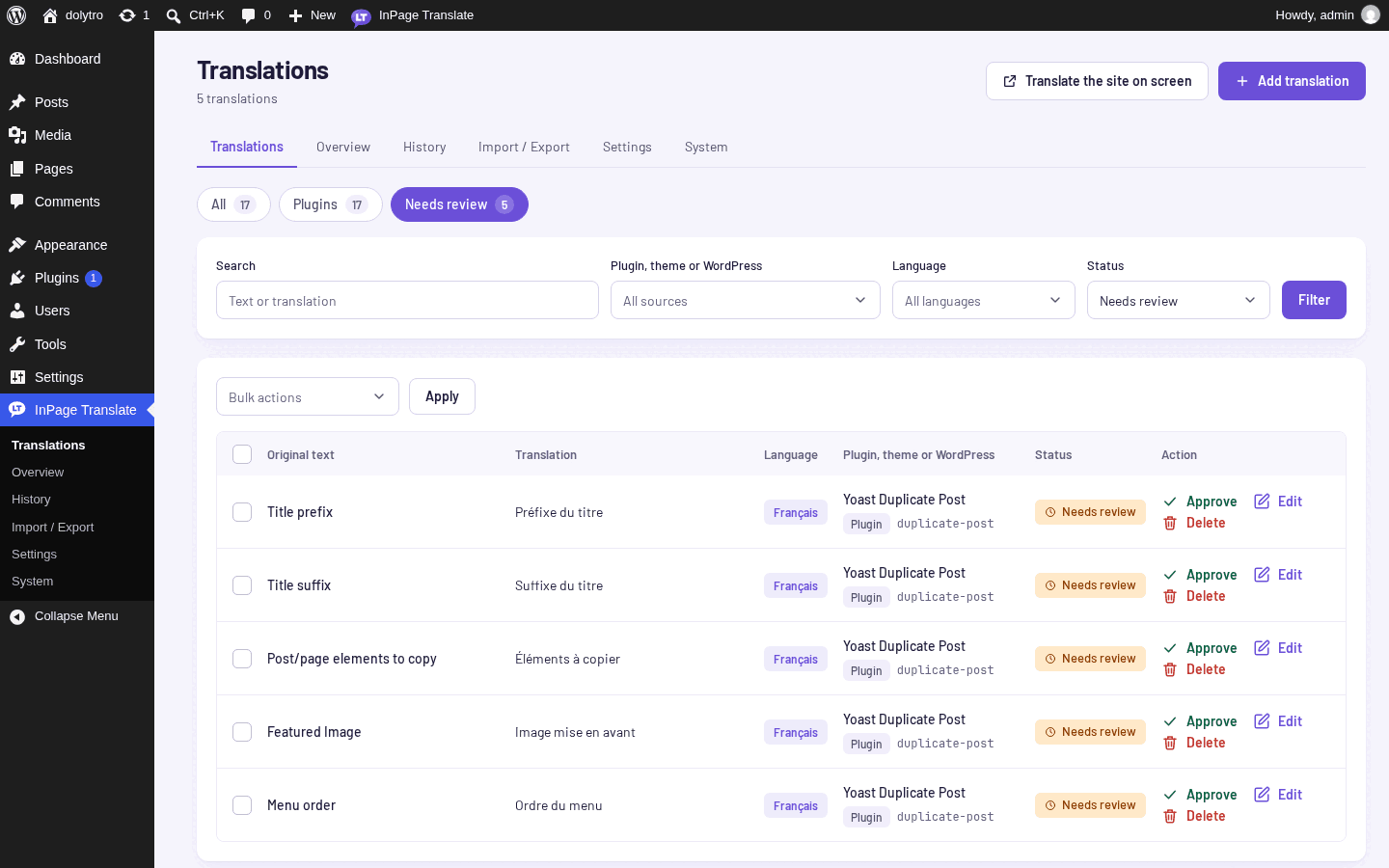
- 1Open Translations and click Needs review.
It shows how many drafts wait.
- 2Narrow the list.
Pick one language and one plugin, so you review texts that belong together.
- 3Check the warnings first.
A warning sign means a placeholder or an HTML tag differs from the original.
- 4Approve in bulk.
Tick the rows that read well, choose Approve under Bulk actions and click Apply. Open Edit on the rest.
Your data, your choice
Nothing is sent to any translation service until you agree to it once. You can use the free MyMemory and Google Translate web endpoint, or add your own DeepL, Google or Microsoft key. See Add a DeepL or Google key.
Summary
Let the machine write the first draft, and let a person decide. Inpage Translate keeps every machine translation marked until it is approved, so you get the speed of machine translation without shipping its mistakes.